Gimmick Bundle
A tool that exports an avatar gimmick (or even a whole avatar) to a folder of JSON files and imports it back. It is an evolution of AnimDsl, intended for letting LLMs such as Claude read "the whole gimmick" — hierarchy, components, clips, and menus included — and, conversely, for materializing a bundle written by an LLM inside Unity.
Window: さたにあしょっぴんぐ/エディタカスタマイザー/Gimmick Bundle (Satania Shopping / Editor Customizer / Gimmick Bundle) in the main menu
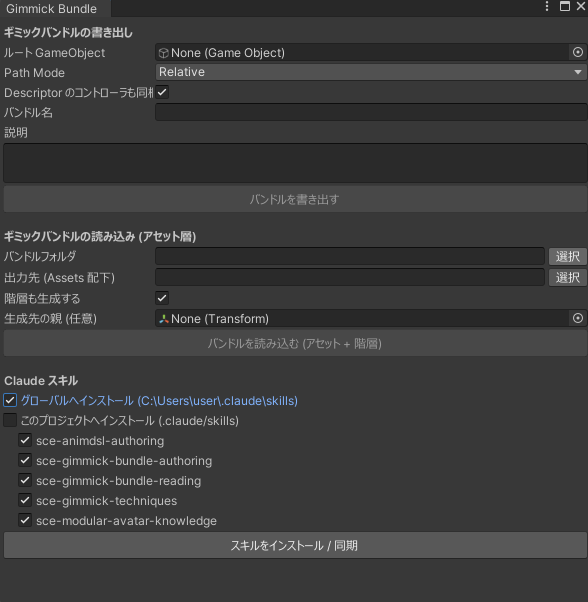
Bundle Contents
MyGimmick/
├─ gimmick.json          … manifest (name, description, file list, warnings)
├─ objects.json          … GameObject hierarchy + all components (including MA)
├─ controllers/*.json    … AnimatorController (AnimDsl format)
├─ clips/*.json          … AnimationClip
├─ menus/*.json          … VRCExpressionsMenu
├─ parameters/*.json     … VRCExpressionParameters
└─ assets/**             … actual files of additional assets (.cs / .dll / shaders / folders, etc.; optional)
Each asset is one file, and references inside the bundle are linked by relative paths. Actual asset data such as meshes and materials is not included (they are recorded as guid / path references, and are linked up if the destination project has the same assets). The exception is "additional assets": only the files you specify are included in the bundle as actual files (+ .meta).
Exporting
Specify a root GameObject in the scene, and its entire subtree becomes the target.
- Path Mode — Relative (relative to the bundle root, default) or Absolute (relative to the scene root). For a distributable gimmick, leave it at Relative
- Descriptor のコントローラも同梱 (Include Descriptor controllers) — Also includes the controllers assigned to the VRCAvatarDescriptor's Base / Special Animation Layers in controllers/. For exporting a whole avatar
- 説明 (Description) — Becomes the description in gimmick.json. This is the first thing Claude reads, so writing a one-line summary of the gimmick's purpose improves how accurately it is understood
- 追加アセット (assets/) (Additional Assets) — Bundles scripts (.cs / .dll), shaders, or whole folders as actual files. Add them by drag & drop, or use "スクリプトを検出して追加" (Detect and Add Scripts) to look up the scripts (under Assets/) of the custom components in the subtree and add them. Files are copied together with their
.meta, so GUIDs are preserved and references are linked as-is in the destination project. This mechanism lets gimmicks that depend on dedicated scripts, such as NDMF plugins, be restored even in projects where those scripts are not installed- A bundle that includes scripts or other files made by others constitutes a redistribution of those files. If you distribute it, check the licenses of the included files
Warnings during export (values that could not be retrieved and were replaced with placeholders, elements AnimDsl cannot carry, etc.) are shown in the window and also recorded in gimmick.json. The "コピー" (Copy) button copies them all to the clipboard, so you can paste them straight into Claude.
Importing
Specify the folder containing gimmick.json and the output destination (under the project's Assets).
- 階層も生成する (Also build hierarchy) — When ON, the GameObject hierarchy and components are also rebuilt from objects.json (you can also specify the parent Transform to build under). When OFF, only the assets (clips, menus, controllers, ExParams) are generated
- Assets are generated under
<output destination>/<bundle name>/, and the hierarchy appears in the scene and is pinned - "Requires user setup" items in hand-written bundles (unassigned meshes, etc.) are also shown in the warnings area, so after importing you only need to fill those in to get it working
- Bundles with additional assets — The actual files in assets/ are restored to their original paths (under Assets/). If an asset with the same GUID already exists in the project, it is skipped (nothing happens if it is already installed), so there is no risk of double import. If scripts (.cs / .dll) are newly imported, the rest (assets + hierarchy) is loaded automatically after compilation (this happens in two stages, but no action is required on your part)
Using with Claude
To have Claude read or write bundles, first put the dedicated skills (how to read and write bundles, a catalog of VRChat gimmick techniques, and Modular Avatar specification knowledge — 5 in total) into your Claude Code skills folder.
Installing from the Editor Extension
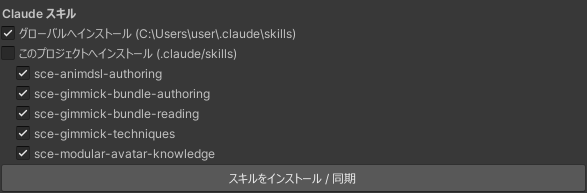
The easiest way is the Claude スキル (Claude Skills) section at the bottom of the window.
- Choose the install destination — グローバル (Global) (
C:\Users\<username>\.claude\skills, shared by all Claude Code projects) or このプロジェクト (This Project) (.claude/skills, active only while this Unity project is open). You can check both - Check the skills to install — all 5 by default. The skills reference each other, so installing them together is recommended
- Press スキルをインストール / 同期 (Install / Sync Skills)
From the second time on, only the differences are updated. After updating SCE, press it again and the skills will follow the new content.
Manual Installation
The folders of each skill are included as-is in Packages/net.satania.customeditors/ClaudeSkills~/ inside the package. Opening this folder in Explorer and copying the skill folders inside it (such as sce-gimmick-bundle-reading) to C:\Users\<username>\.claude\skills\ has the same effect.
ClaudeSkills~ is not visible in the Project window
Unity ignores folders whose name ends with a tilde (~), so it does not appear in the Project window. Open it directly in Explorer (you can reach the package folder by right-clicking the package in the Project window → Show in Explorer).
Usage
It mostly comes down to these two directions:
- Reading — Export a gimmick and tell Claude "read this bundle". You get back an explanation of what the gimmick does and how it does it, as a chain of cause and effect
- Writing — Ask "make me a gimmick like this" to have Claude write a bundle, then import it in this window. For gimmicks on the level of toggles or Radial adjustments, the result comes out in a working state once you fill in the warnings
Requirements
- Importing a bundle requires
com.unity.nuget.newtonsoft-json(exporting does not) - Regenerating menus / parameters requires the VRChat Avatars SDK, and rebuilding MA components requires Modular Avatar (in environments without them, those parts are skipped and a warning is shown)
- The bundled Claude skills are only included in the VCC (VPM) distribution. They are not included in the .unitypackage version