Editor Theme Experimental
A theme feature that lets you overlay a color scheme of your own choosing on top of Unity's built-in Dark / Light themes. Much like Blender's theme settings, you define one set of "colors by role" and it is applied across the whole Editor at once — window backgrounds, tabs, buttons, input fields, selection highlights, and more.
Configure it from the Theme tab of the window opened via さたにあしょっぴんぐ/エディタカスタマイザー/Editor Setting (Satania Shopping / Editor Customizer / Editor Setting) in the main menu.
How to Use
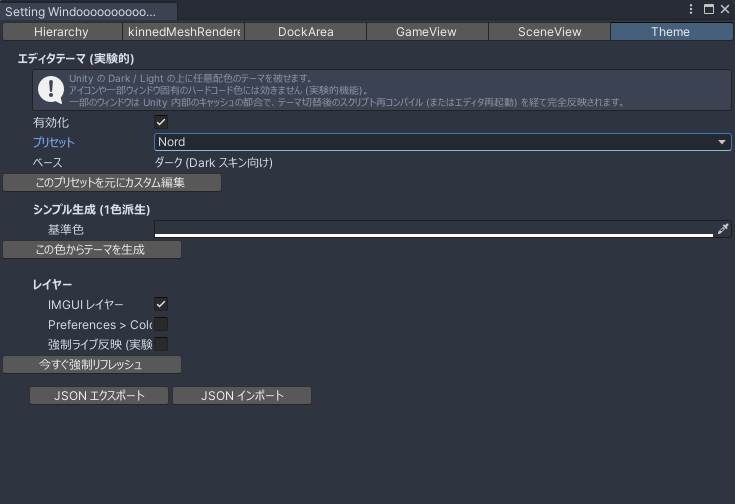
- Open
さたにあしょっぴんぐ/エディタカスタマイザー/Editor Settingfrom the main menu and turn on 有効化 (Enable) in the Theme tab - Pick a color scheme from プリセット (Preset) — dark-based: Blender Slate / Nord / Twilight Purple / Sakura Dark; light-based: Sakura Light / Mint Breeze
- To tailor it to your taste, press "このプリセットを元にカスタム編集" (Customize Based on This Preset) and adjust the colors using the custom color scheme's color pickers
Color changes are applied to the Editor after a short delay (about 0.25 seconds). Turning it OFF fully restores the original look, including any generated files.
Simple Generation (derived from one color)
If deciding every color is a chore, you can also just pick one base color and press "この色からテーマを生成" (Generate Theme from This Color). The full color scheme is generated automatically by deriving brightness variations, and whether the base is dark or light is also determined automatically from the brightness of the base color. The result becomes a custom color scheme, so you can fine-tune individual colors from there.
About Theme Bases
Each theme is either dark-based or light-based. Unity's own branching (isProSkin) cannot be changed, so when using a dark-based theme, for example, it is recommended to also set Unity's theme (Editor Theme) to Dark.
If you pick a theme whose base does not match, a dialog asks "Unity のテーマを切り替えますか?" (Switch the Unity theme?) with はい / いいえ (Yes / No); choosing Yes aligns them on the spot. If you choose No, a switch button remains in the warning on the settings screen, so you can align them at any time later.
Layer Structure
The Editor UI is a mix of two generations of UI systems, so the theme is applied in two layers as well.
- UI Toolkit layer (always on) — applies a style sheet that redefines the color variables of the new-generation UI (the Inspector and most windows) to every window
- IMGUI layer (toggleable, default ON) — generates USS files under
Editor/EditorTheme/StyleSheets/Extensions/inside the SCE package to paint the surfaces of the legacy UI. This takes advantage of Unity automatically picking up files placed under this path convention on startup. Turning it OFF deletes the files. Files that older versions created underAssets/SataniaCustomEditor/are cleaned up automatically the next time the theme is applied (only when the package is not writable, the files are generated underAssets/SataniaCustomEditor/StyleSheets/Extensions/as before)
In addition, the base color of the OS window, which briefly shows through while resizing, also takes the theme color.
Preferences > Colors Integration
Turning on "Preferences > Colors にも反映" (Also apply to Preferences > Colors) writes the Scene view background color and grid color from the theme into Preferences (Scene/Background, Scene/Grid). The original values are backed up and restored when it is turned OFF.
Sharing Themes
JSON export / import lets you pass a color scheme around as a single file. Export writes the color scheme currently in use (including presets); import loads it as a custom color scheme.
Unaffected Areas (Known Limitations)
This is an experimental feature
Not all Editor colors are supplied from a single place, so the following are not affected.
- Icons — the colors are baked into textures, so they are out of scope
- Hard-coded colors in some windows — colors written directly in C# code, such as the Profiler timeline and the Audio Mixer (59+ places inside Unity), would each need individual handling and currently remain in their original colors
- Natively drawn areas — regions drawn by the OS, such as the title bar and menu bar
Also, some windows inside Unity copy and cache styles at startup, so right after switching themes or editing colors, parts of the UI may keep the old colors. The theme is fully applied after a script recompile (or an Editor restart).
If you do not want to wait for a recompile, you can try "強制ライブ反映 (実験的)" (Force Live Refresh (Experimental)) in the Theme tab. It is a brute-force approach that discards Unity's stale internal style caches on the spot and forces them to be rebuilt; the switch takes effect immediately, but because it reaches into internal implementation it may become unstable in some environments (default OFF; the "今すぐ強制リフレッシュ" (Force Refresh Now) button runs it once on demand).
Also, this mechanism is built on top of Unity's non-public machinery (StyleCatalog / Editor style sheets), so its behavior may change with Unity version upgrades. If you run into problems, turning 有効化 (Enable) OFF fully restores the original state.